Configuring Printer Admin Credentials
The Secure Print system must be able to access print devices in your environment that are secured with Card Readers or login credentials. If no changes have been made, the default credentials will be used. If the printer credentials are not the same as the default credentials, you can change them or reset them to default in the Secure Printers screen so that Secure Print can access the printer. The credentials can be used for subsequent provisioning operations.
The Admin Credentials property of a printer can be any of the following:
- Set - The credentials (username and password) for the device has been changed from the manufacturer default admin credentials.
- Default - The device uses the manufacturer admin credentials.
- Not supported - The device does not support username and password and/or Card Reader release options.
Note: The Printer Admin Credentials action is available only when the Card Reader or the Password / PIN User Workflows are selected from the Setup Guide or Settings screen.
Depending on the current settings, you may either set/change your username and/or password or reset the username / password to the default if it is already set.
Changing Username
To change username from default:
- In the system, navigate to Secure Print> Secure Printers .
- Select the printer on which you want to change the username.
- Click on the Printer Admin Credentials button.
-
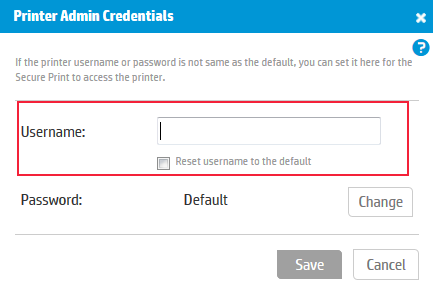
Click the Change button in the Username field. This opens a dialog box.
-
In the Username field, enter the new username.
-
Click Save to apply changes.
-
In the Secure Printers screen check that the Admin Credentials column is updated to Set.
Changing Password
To change the password from the default.
- In the system, navigate to Secure > Secure Printers screen.
- Select the printer on which you want to change the password.
- Click on the Printer Admin Credentials button.
- Click Change next to the Password field.
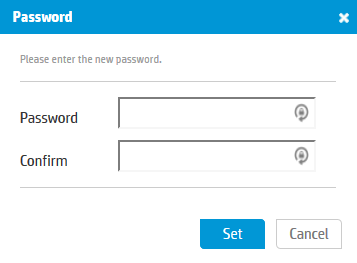
- The Password dialog opens. Enter the new password and then click Set.
- Click Save to apply changes.
- In the Secure Printers screen check that the Admin Credentials column is updated to Set.
Resetting the username to default
- In the system, navigate to Secure > Secure Printers screen.
- Select the printer on which you want to reset the username to default.
- Click on the Printer Admin Credentials button.
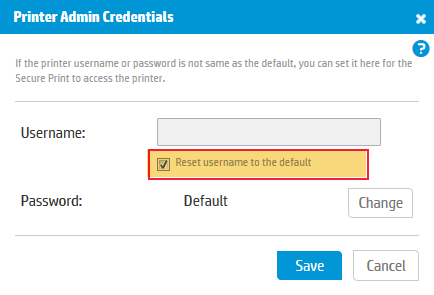
- Select the Reset username to the default option.
- Click Save to apply changes.
- In the Secure Printers screen, check that the Admin Credentials column is updated to Default.
Resetting the password to default
To reset the password to the default password:
-
In the system, navigate to Secure > Secure Printers screen.
-
Select the printer on which you want to reset the password back to default.
- Click on the Printer Admin Credentials button.
-
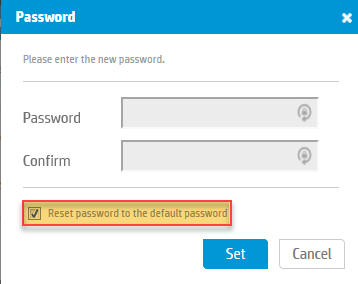
Click the Change button in the Password field. This opens the Password dialog box.
- Select the Reset password to the default password option and then click Set.
- Click Save to apply changes.